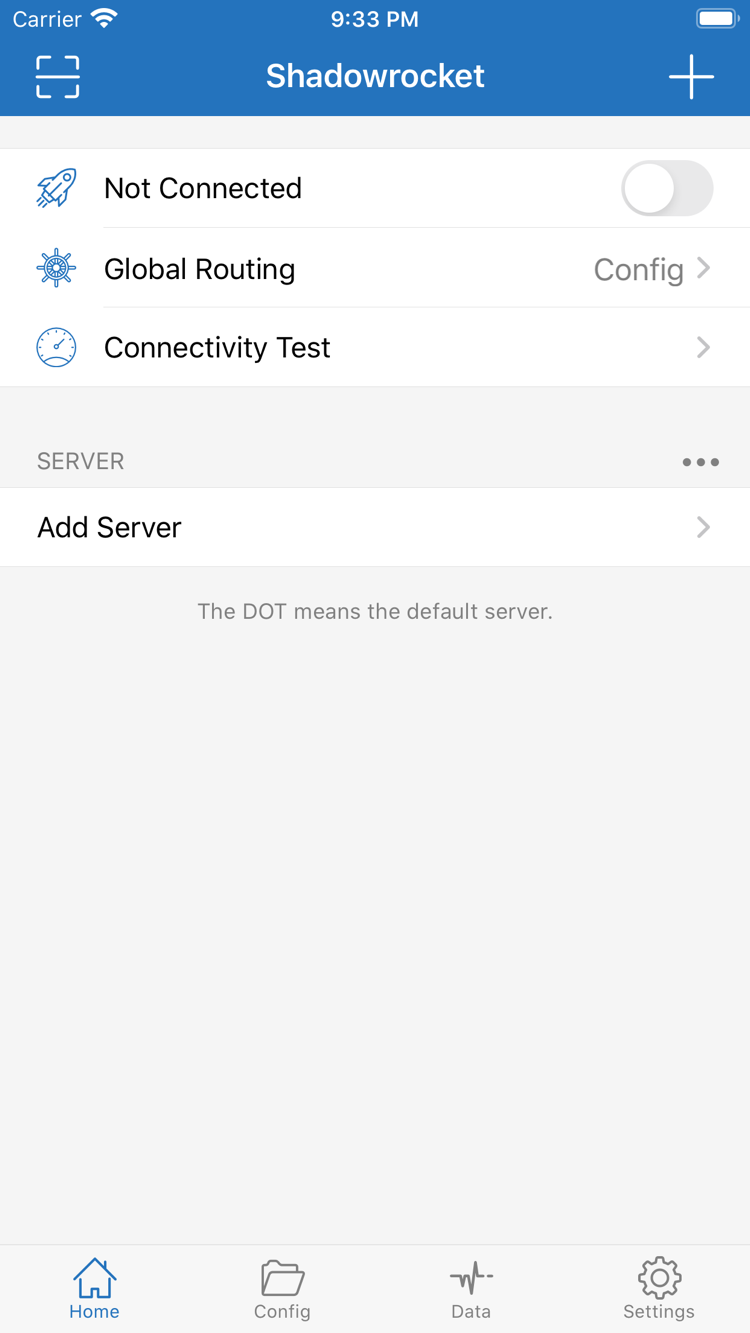
A rule-based proxy client for iOS / iPadOS. First verify the genuine App Store app and its one-time purchase, then import an existing subscription and choose a connection strategy using rules.
Shadowrocket is available only through the App Store. Open the product page to verify the app, then check the current store price and device compatibility. See the App Store listing for system requirements.
iPhone
For a complete first-time setup, purchase and open Shadowrocket in the App Store, prepare your own subscription or server details, then follow the system prompts to add a VPN configuration. System authorization only allows a connection to be established; it does not import a subscription or confirm that a remote server is available. Connect manually and verify access before considering On Demand.
If you’ve already purchased the app, check your purchase history using the original purchasing account. See the App Store listing for whether the purchase is available across devices. Purchase history and in-app settings are managed separately: after installing the app, check your subscription, current selection, and Config. Layouts may differ on larger screens. Find options by their names—Home, Add Server, Config—not by their position.
Start by distinguishing server details, connection mode, and configuration files. The server determines where you connect; Global Routing determines how requests are handled; rules in Config determine which strategy applies to each destination.
Rule-based routing
Rules are matched from top to bottom. Once a rule matches, its policy applies and later rules are not checked. After selecting Config in Global Routing, confirm which configuration file is active, then check the order of DOMAIN-SUFFIX, IP-CIDR, and FINAL. Put specific destinations before broader rules; FINAL is usually last to handle remaining requests. The example below shows syntax only—it is not a complete file to use in place of your own configuration. Keep a copy of the original before editing, then test real requests to confirm the matching rule and policy.
On Demand starts connections when specified conditions are met, unlike turning the connection on manually. When reviewing the options in Settings, consider Wi-Fi, cellular data, and your typical network changes. First make sure manual connections are stable, then adjust conditions one at a time so you can identify the cause of any issue. On Demand cannot fix incorrect server details or guarantee lower battery use. If connections keep restarting, check the trigger conditions and network changes, then review system battery usage.
Multiple protocols
When adding a server, Type must match the server details you already have. Shadowsocks, VMess, VLESS, Trojan, Hysteria2, and WireGuard use different parameter formats; matching addresses and ports do not make their types interchangeable. In Add Server, check the password, encryption method, and any transport or TLS options required by the protocol. Don’t fill in fields that don’t apply based on guesswork. If a connection fails after import, first check that all details are correct, then investigate the network and remote server rather than switching protocols at random.
ShadowsocksVMessVLESSTrojanHysteria2WireGuard
Importing subscriptions
Get the subscription URL from your own service provider, then select Subscribe in Add Server and enter it in the appropriate field. A subscription is a source for updating server entries, not proof of app purchase, and it may not include routing rules. After saving, check that the entry appears and uses the right protocol, then select the one you want to use. If an update fails, make sure the URL is complete, access is still valid, and your local network is working. Subscription URLs may contain access credentials; hide the full URL before sharing screenshots or asking for help.
Subscribe · URLhttps://example.com/sub?token=xxxx
Config files
Config organizes rules and other connection settings. Importing a subscription and enabling a configuration file are separate actions. When reading a configuration, first identify the [General], [Rule], [Host], and [URL Rewrite] sections, then check which section each entry belongs to. Keep a usable copy before editing rules and change one condition at a time. You don’t need to enable rewrite settings you don’t understand just to establish a basic connection. If something goes wrong, revert to the original configuration and test the same destination to narrow down the cause.
[General][Rule][Host][URL Rewrite]
Diagnostics & latency tests
In Home, Connectivity Test checks whether a connection can be made. Results depend on the test method, current network, and remote server, and do not represent actual download speed. First make sure your local network works, then test existing entries, and finally check whether a target request matches the expected rule. Traffic statistics in Data can help you observe connection activity, but don’t prove on their own that every request uses the same policy. To troubleshoot, record the network, mode, and test method—not just the test result.
Check the connection conditions first, then verify the rules against real requests.
Choosing a Global Routing mode
The selected mode determines whether rules are used. This guide distinguishes Config, Proxy, and Direct by their interface labels. When troubleshooting, note the current mode before changing servers or configuration.
Config: apply the policies defined by your configuration
Use Config when different destinations need different policies, such as PROXY, DIRECT, or REJECT. In Config, confirm which file is selected, then return to Home and check Global Routing. PROXY rules still depend on an available proxy selection; a correctly written rule does not guarantee the selected server is reachable. Check the destination, matching rule, and resulting policy together. An enabled connection toggle alone doesn’t prove that routing is working as intended.
Proxy can help determine whether an issue is related to rules in Config. First check the current proxy selection and its settings, then test the same destination for comparison. If it still fails in Proxy mode, check your local network, server address, authentication details, and remote server status. If the problem occurs only in Config, revisit rule order and policy selection. Change only the mode during a comparison test; changing the network and server at the same time makes the results harder to interpret.
Direct is a connection mode; it is not the same as the DIRECT policy in an individual rule. You can compare how the same destination behaves when connected directly, but this does not test the proxy server. If the destination is unreachable on your current network, distinguish between local network restrictions, the destination service’s status, and proxy connection issues. After testing, restore the mode you normally use so temporary troubleshooting settings aren’t left in place.
This is the Shadowrocket Official Site & Manual. Use the App Store product page to verify the app identity, purchase price, compatibility, and update history.
When you find Shadowrocket in search results, don’t rely on the name alone. Open the product page and verify the developer, Shadow Launch Technology Limited; compare the white icon with its blue-purple outlined design against the official icon on this site; and confirm that the product link includes app ID 932747118. Search results may include similarly named apps, so check all three. If you’ve opened a different app’s product page, go back and verify again—similar names do not mean it’s the same app.
App Store availability & account status
Search results for the same term can vary between storefronts. If you can’t find the app, check the current storefront for your App Store account, content and age-rating restrictions in Screen Time, and any pending payment issues. Then open the product page from the app verification guide and check the message shown by the store. Not finding the app in search doesn’t mean your device is incompatible or that your purchase history has disappeared. See the App Store listing for system requirements.
Shadowrocket is a paid app. The US storefront reference price is $2.99 as a one-time purchase; other storefronts show local currency, and the amount on the purchase confirmation screen is the final price. Check the current App Store listing for purchase availability on iPhone and iPad, compatibility with other Apple devices, and Family Sharing eligibility. To get the app on another device after purchasing, first check your purchase history using the original purchasing account, then see whether the store offers a redownload or asks you to buy it again.
The app purchase is separate from connection resources
Buying the app does not buy a service plan. Purchasing Shadowrocket gives you access to the client; it does not create a server, subscription URL, or working connection. To configure the app, you’ll need your own existing subscription or server details and should check their status with your service provider. This manual explains how to import, select, update, and troubleshoot them; this site does not provide, sell, or recommend servers or subscriptions. A successful app purchase and a working remote connection are separate things to verify.
Restoring purchases & App Store updates
When switching devices or reinstalling, look for Shadowrocket in your App Store purchase history and make sure you’re using the original purchasing account. Restoring the app does not restore all in-app settings; check your subscription, Config, and current selection separately. App updates are managed through the App Store and can follow your device’s automatic update settings. If something goes wrong, note what you did and the system message you saw; you don’t need a specific version number to find an answer. See the app verification guide for purchase restoration steps.
Config sync & sensitive information
If you use iCloud-related sync options in Settings, first check that you’re signed in to the intended account, that iCloud access is allowed for the app, and that the results match the sync scope shown in the app. Sync, subscription updates, and purchase restoration are three separate processes and cannot replace one another. Config files and subscriptions may contain server credentials. When sharing a problem, include only the rule details needed and hide passwords and the full subscription URL. Keep a restorable copy of your configuration before making important changes.
First identify which step is causing the problem, then choose what to try next. Change one condition at a time to avoid repeating steps that don’t help.
The subscription imported successfully. Why can’t I connect?
A successful import usually means the client retrieved and recognized the entries. Next, check the selected server, authentication details, subscription status, and local network, then run Connectivity Test. Check the connection toggle and actual access separately. Start with the first connection and verification steps, and don’t change several settings at once before you’ve identified where the failure occurs.
Does updating a subscription also replace Config?
Don’t assume they change together. Subscriptions usually update server entries; Config organizes rules and related settings. The imported content and its behavior depend on the operation you perform and the prompts shown in the app. After updating, check the server list and active configuration file separately, and see whether manual edits are still there. For the difference, see Subscriptions and configuration files at a glance.
A latency test returned a result. Does that mean everything works?
A test result reflects one check using a particular method; it can’t cover every destination, transport, or rule policy. Test the destination you actually need to reach, then check whether the expected rule matched. If only certain destinations fail, check their status and matching conditions individually. For related terms, see Connectivity Test explained.
Why didn’t my connection behavior change after editing a rule?
First confirm that Global Routing is set to Config and that you edited the file currently in use. Then check whether an earlier rule matched or FINAL caught the request first. If needed, start a new connection to verify the change; don’t judge by a session that was already established. For details, see Rule order and policy reference.
In-depth guides
App Store checks & connection troubleshooting
Choose a guide based on what you’re seeing: for App Store search issues, check your account and storefront; for connection failures, verify settings and test conditions; for speed issues, narrow down the cause step by step.
Check the current storefront, content restrictions, and account payment status in order. Distinguish missing search results from a product page that says the app isn’t available, then verify the listing using the app ID.
First note the test method and network, then check the protocol, authentication details, and system time one by one. Keep the test destination the same so you can compare results and track what you’ve ruled out.
Start with the network near your device, then check protocol settings and the remote connection. Use repeatable comparisons to identify the bottleneck; a single latency test doesn’t determine connection speed.